During Fall, 2026 changes are coming to multi-factor authentication (MFA) across Hopkins. You are probably aware that MFA provides an extra level of security for intercepted, guessed, phished, or otherwise compromised passwords. Previously available options for MFA, SMS and voice phone call, will no longer be available from Microsoft, our identity provider, in January, 2027 as they no longer provide the level of phishing-resistant security expected of MFA. Hopkins and WSE IT are working to migrate users to MFA that are phishing-resistant, primarily use of smartphone apps but also hardware-based tokens, in advance of that deadline.
For most people, using the smartphone app will be most convenient. We also recommend adding a backup method to avoid being locked out if you lose access to your primary device.
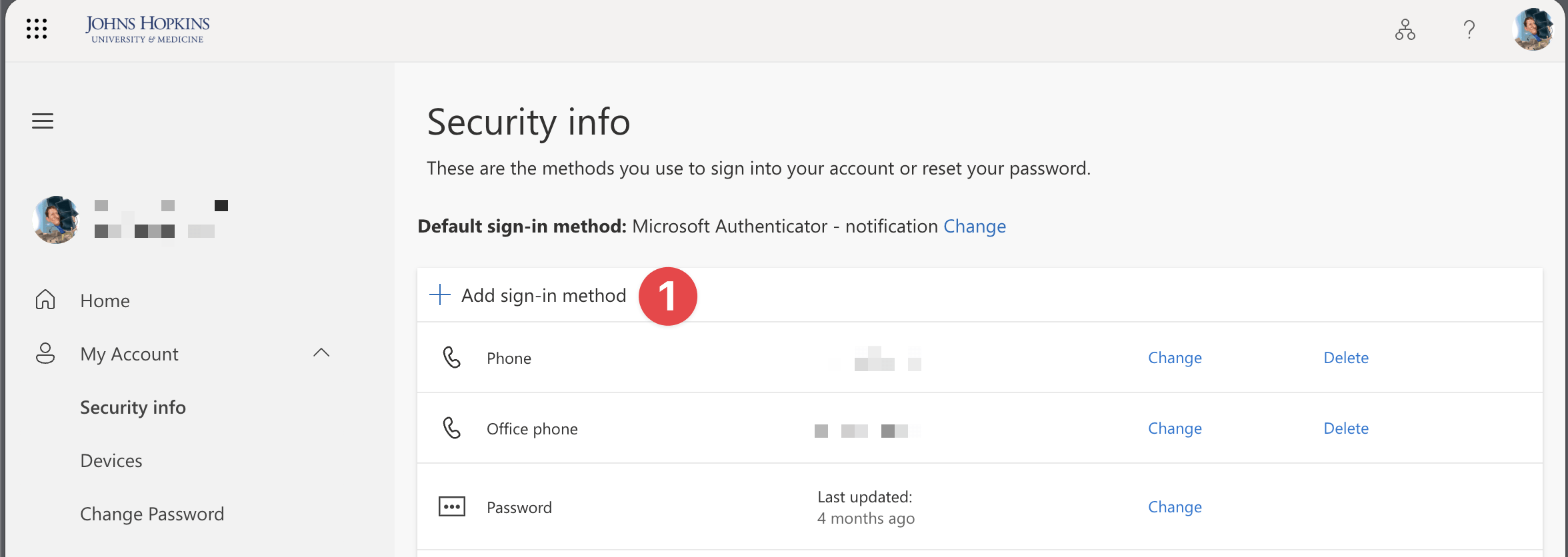
- Visit the MFA Setup Site: https://aka.ms/mfasetup and log in with your JHED
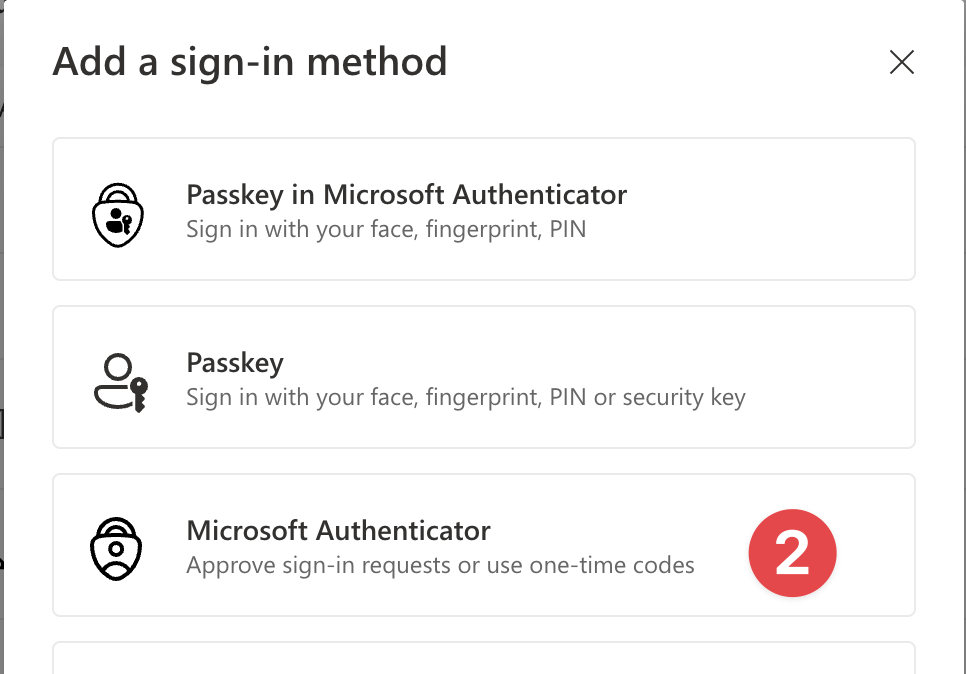
- Select “Add sign-in method.” Select “Microsoft Authenticator – Approve sign-in requests or use one-time codes.”
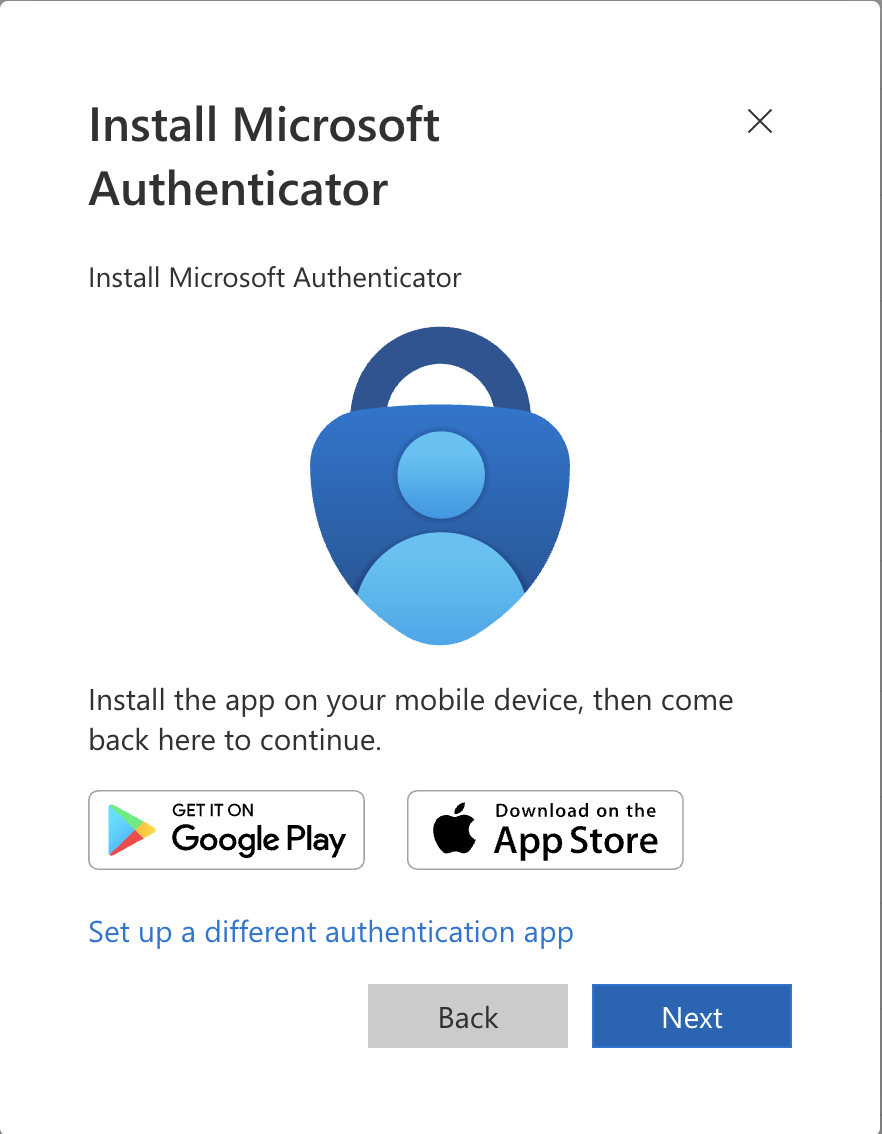
- Install the Microsoft Authenticator App when prompted, if you do not already have it.
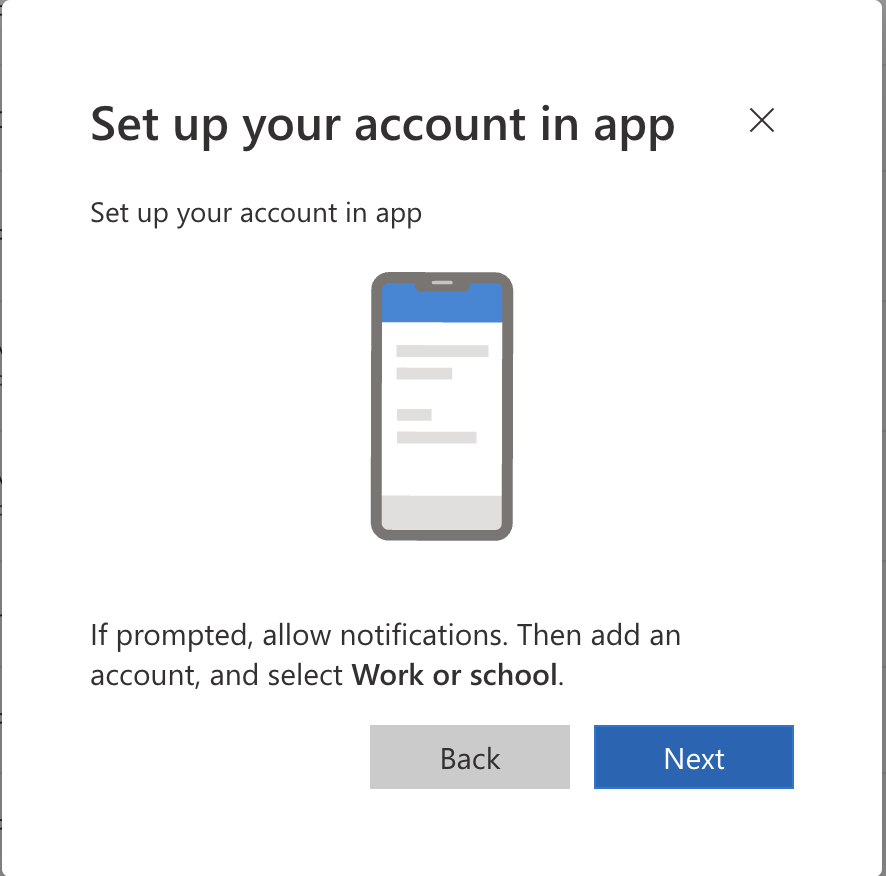
- Open the Microsoft Authenticator app
- If prompted, allow notfications
- Tap “Add an account” then select “Work or School”
- Click “Next”
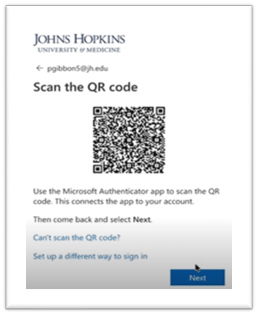
- Make sure the smartphone app is connected to your JHED account by scanning the QR Code.
- Use your smartphone to scan the QR code displayed on your computer screen
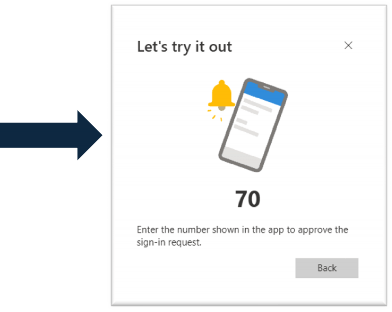
- After scanning, you will receive a notification.
- Enter the number shown on your smartphone to approve the sign-in request.
- Save your changes by selcting Done on your computer.
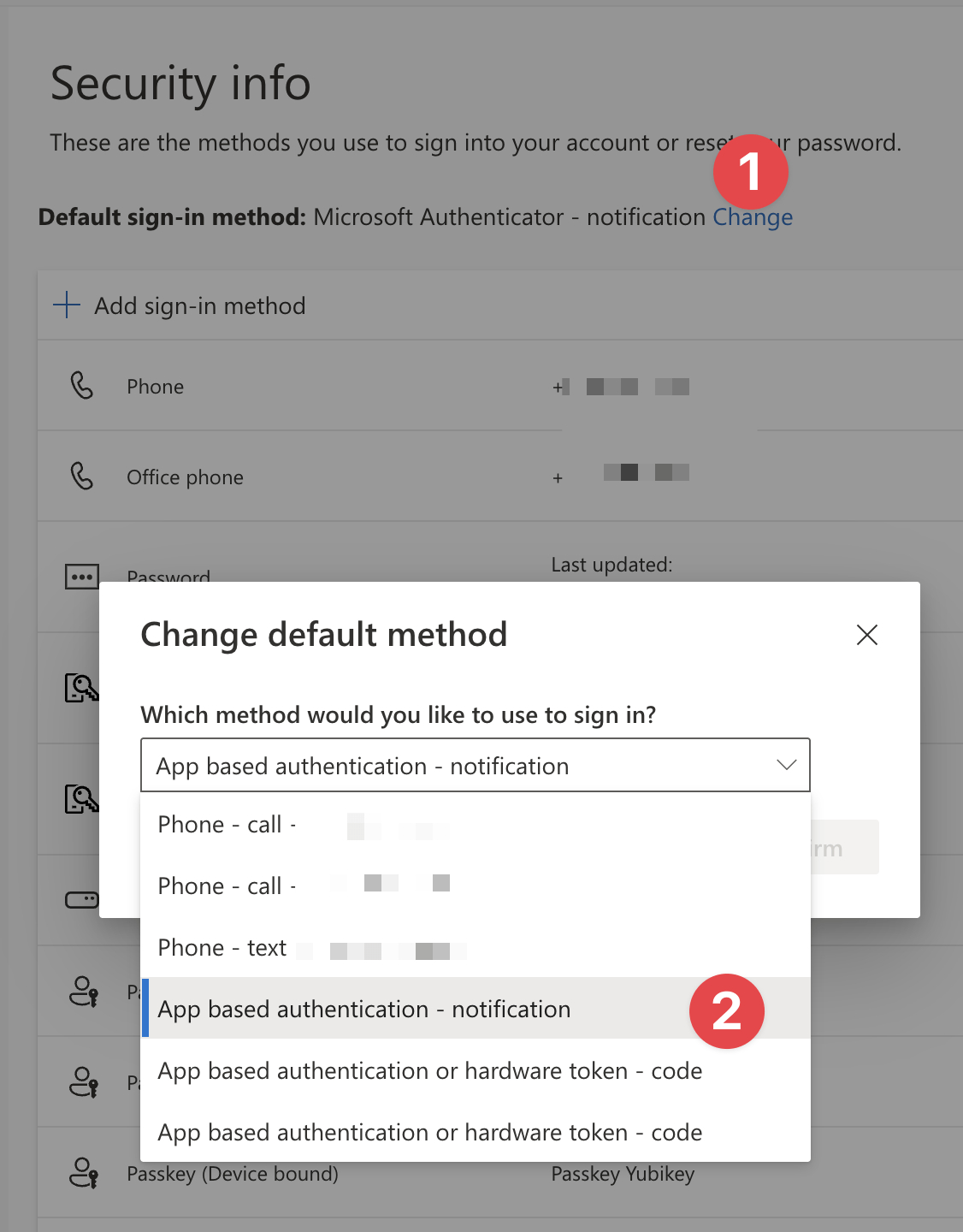
- IMPORTANT: Finish the process by changing your default sign in method.
- On the My Sign-ins site click “Change” next to the Default sign-in method
- Select “App-based authentication – notification.”