Here are instructions for how to add printers in the Dean’s Office spaces of the 6225 Building. (If you’re looking to add a printer in the public / DSAI areas, please look here.)
As always, if you want help rather than figuring this out yourself, please contact us at wsehelp@jhu.edu.
First, figure out what printer(s) you might want to add, then follow the directions for your operating system.
1st Floor:
6225 Near SE121 – Color HP Color LaserJet Flow E87740
IP: 10.185.3.64
Terrace Level:
6225 ET10 – B&W – HP LaserJet Flow E82650
IP: 10.185.4.60
6225 ET61 – HP Color LaserJet Flow E87740
IP: 10.185.4.61
Adding Printers to Macs
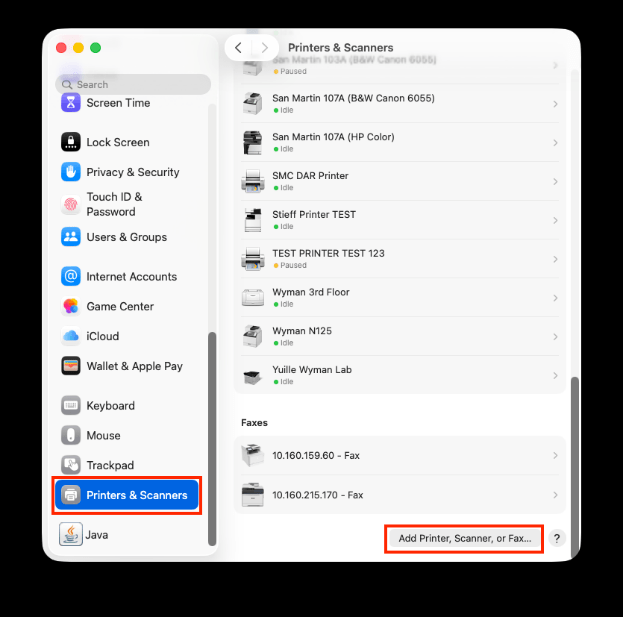
Open System Preferences > Printers and Scanners > In the printer and scanners window click the “+” sign (enter passwords if required)
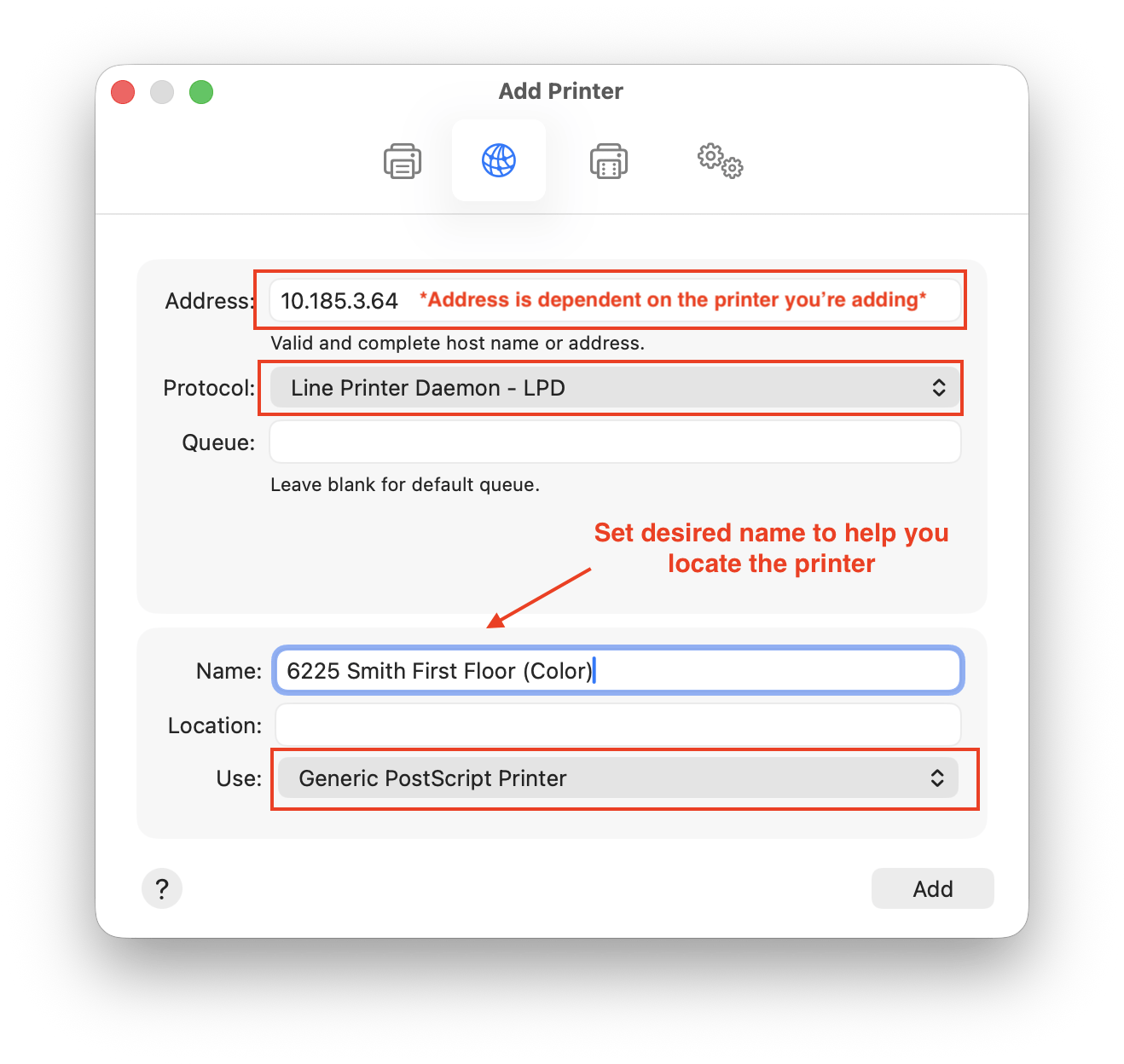
In the Add printer Window click the IP button (globe icon at the top middle) and enter the following information:
Address: 10.185.3.64 (or the IP address of the printer you are trying to add)
Protocol: AirPrint
Queue – leave blank
Name: For example – 1st floor 6225 Printer (you can name this whatever you would like to make it easy to identify)
Use: It should automatically find the driver or use Generic PostScript Printer then click the “add” button and you should be good to go – See attached images for reference. It might take longer than you expect for the printers to add, so be patient. It can take a couple of minutes.
Adding Printers to Windows
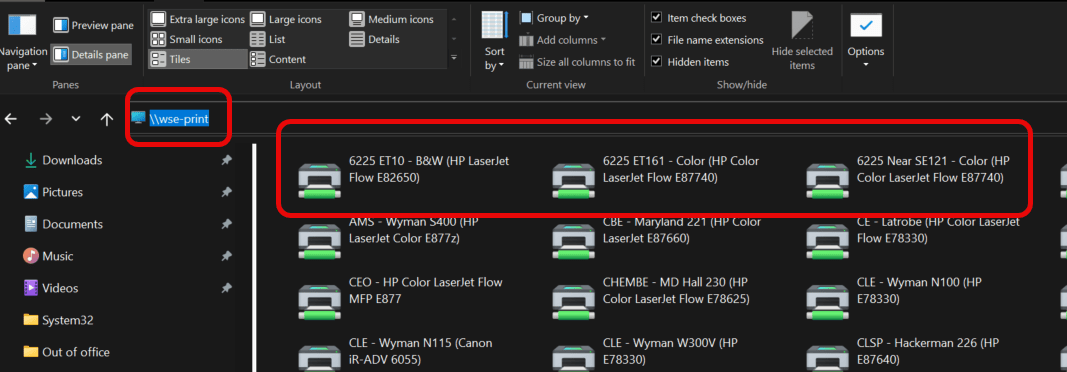
Open File Explorer > enter “\\WSE-Print.win.ad.jhu.edu” (without quotes) into the navigation bar, then find the 6225 printer you want to add, then double click it and it will install the printer – see image below.