Here are instructions for how to add printers in the public areas of the 6225 Building. (If you’re looking to add a printer in the Dean’s Office areas, please look here.)
As always, if you want help rather than figuring this out yourself, please contact us at wsehelp@jhu.edu.
First, figure out what printer(s) you might want to add, then follow the directions for your operating system.
Second Floor, Tower A:
SE243 – HP Color LaserJet Flow E87740
IP: 10.185.6.38
NE259 – HP Color LaserJet E877
IP: 10.185.8.96
Second Floor, Tower B:
270A – HP Color LaserJet Flow E87740
IP: 10.185.20.33
220A – HP Color LaserJet Flow E87740
IP: 10.185.22.31
Third Floor, Tower A:
NE318 – HP Color LaserJet Flow E87640
IP: 10.185.18.78
NE372 – HP Color LaserJet Flow E87740
IP: 10.185.19.53
Adding Printers to Macs
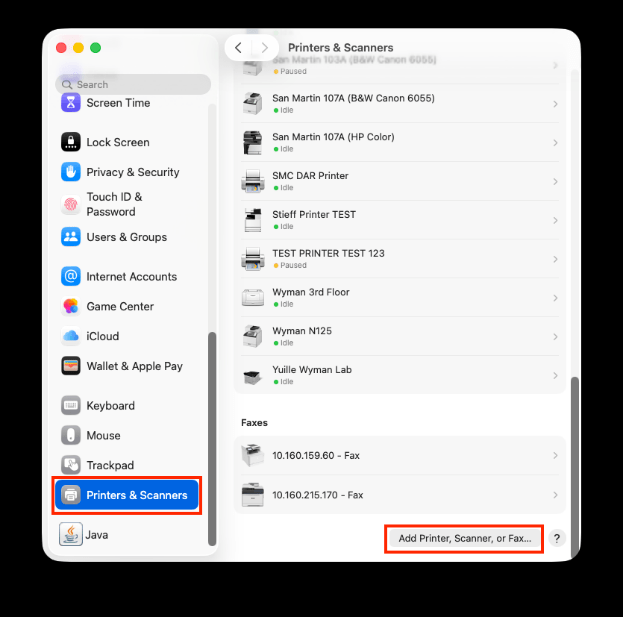
Open System Preferences > Printers and Scanners > In the printer and scanners window click the “+” sign (enter passwords if required)
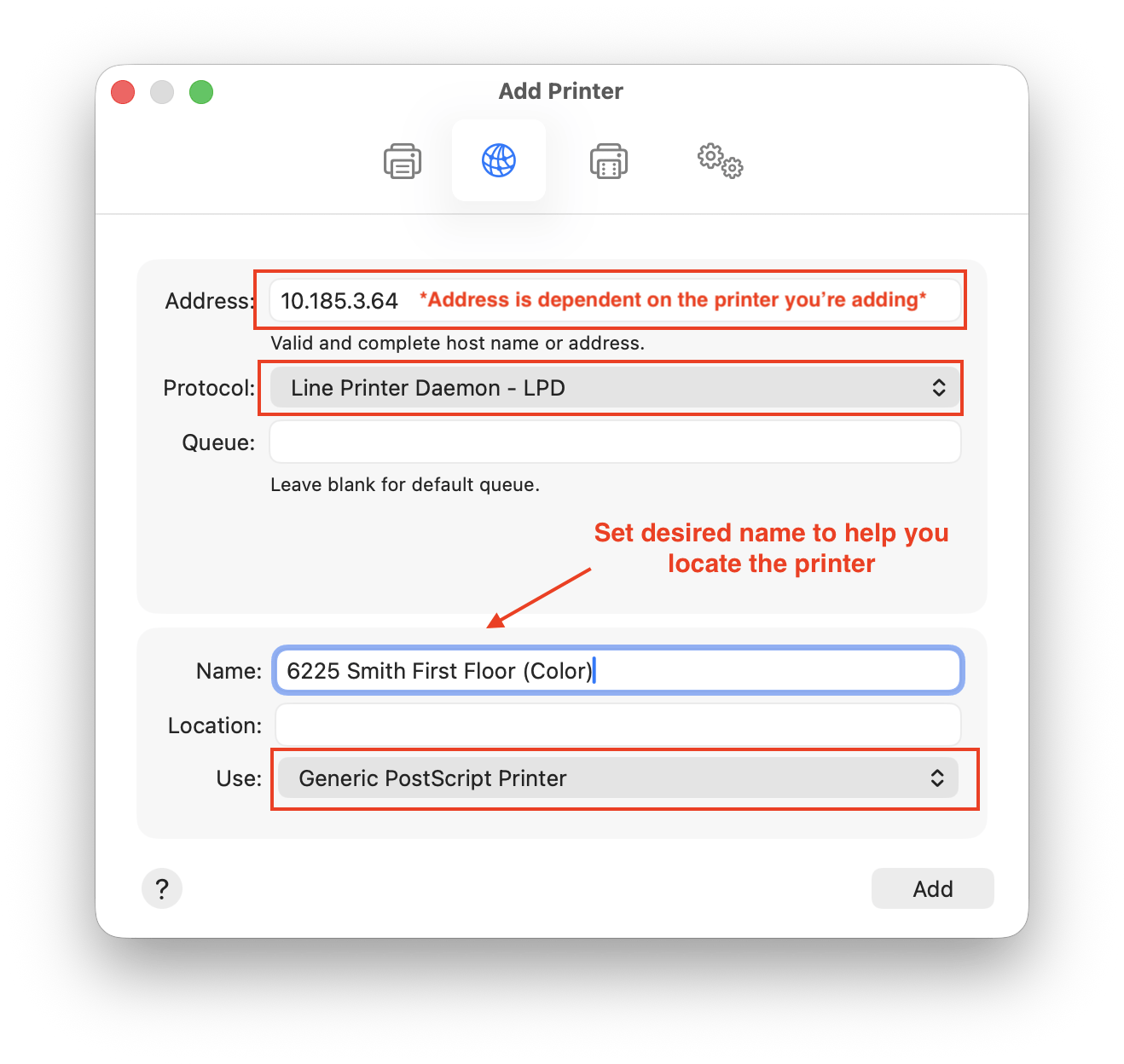
In the Add printer Window click the IP button (globe icon at the top middle) and enter the following information:
Address: 10.185.x.x (where x.x is the last part of the IP address of the printer you are trying to add)
Protocol: AirPrint
Queue: leave blank
Name: For example – 2nd Floor 6225 Printer (you can name this whatever you would like to make it easy to identify)
Use: It should automatically find the driver or use Generic PostScript Printer then click the “add” button. It might take longer than you expect for the printer to add, so be patient. It can take a couple of minutes.
Adding Printers to Windows
Before doing anything you should install the correct drivers for the printers. While the printers may work with generic drivers, features like double sided printing, stapling, and paper type selection probably won’t work without the advanced drivers.
The drivers needed are the HP Smart Universal Drivers. There are other drivers labeled as just Universal Drivers, but those don’t support all the features of these new printer models. The download is at
https://support.hp.com/us-en/drivers/hp-smart-universal-print-driver-series-for-windows/33835514
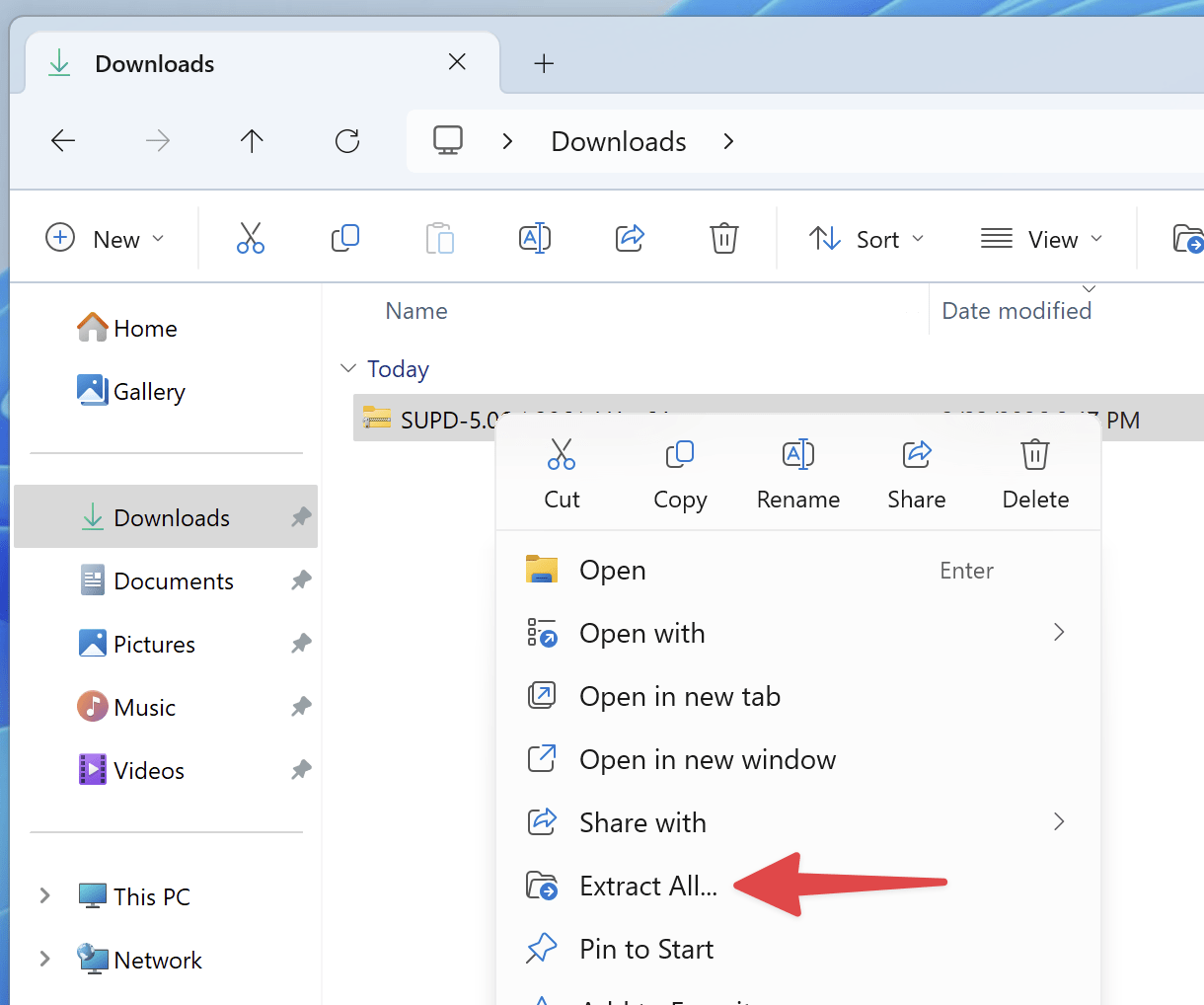
Under Driver-Smart Universal Print Driver pick the correct download for your version of Windows (almost certainly 64-bit and not ARM64-bit or 32-bit). In your Downloads folder, right-click and Extract All on the downloaded file.
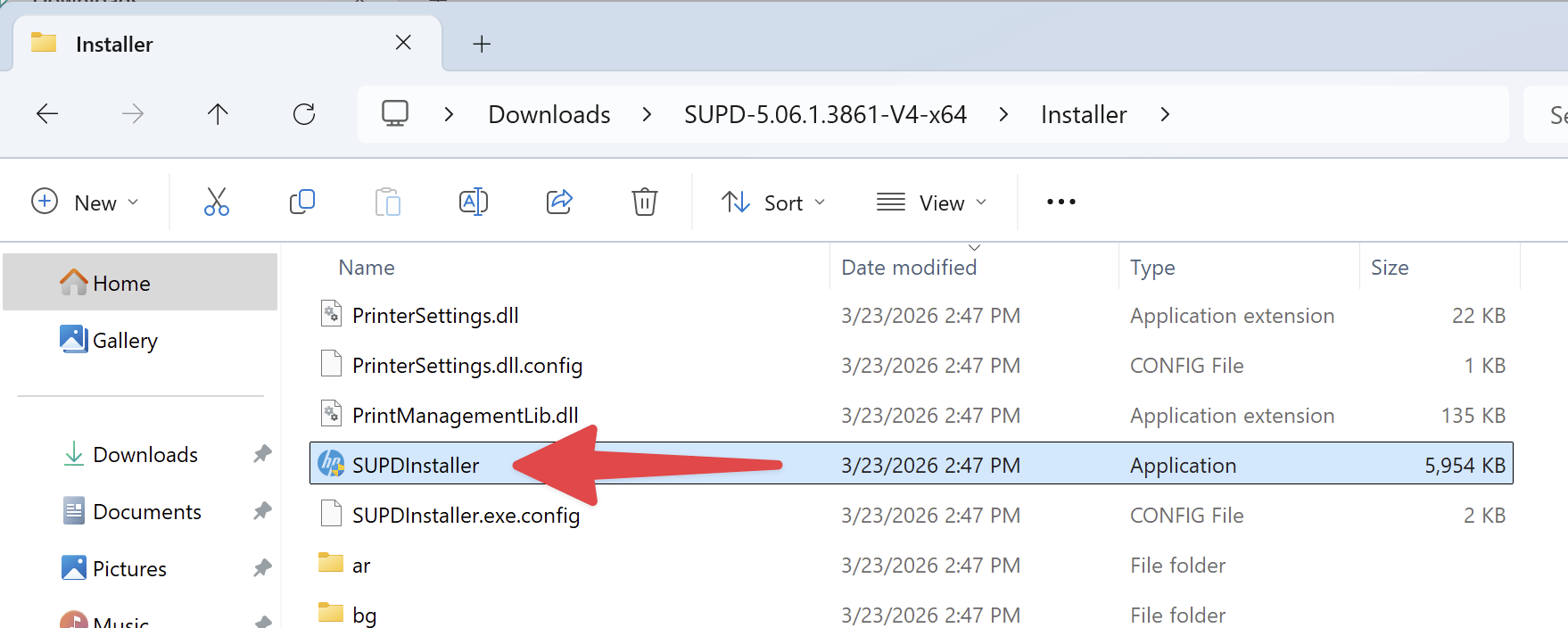
In the folder of extracted files, run the SUPDInstaller.exe program.
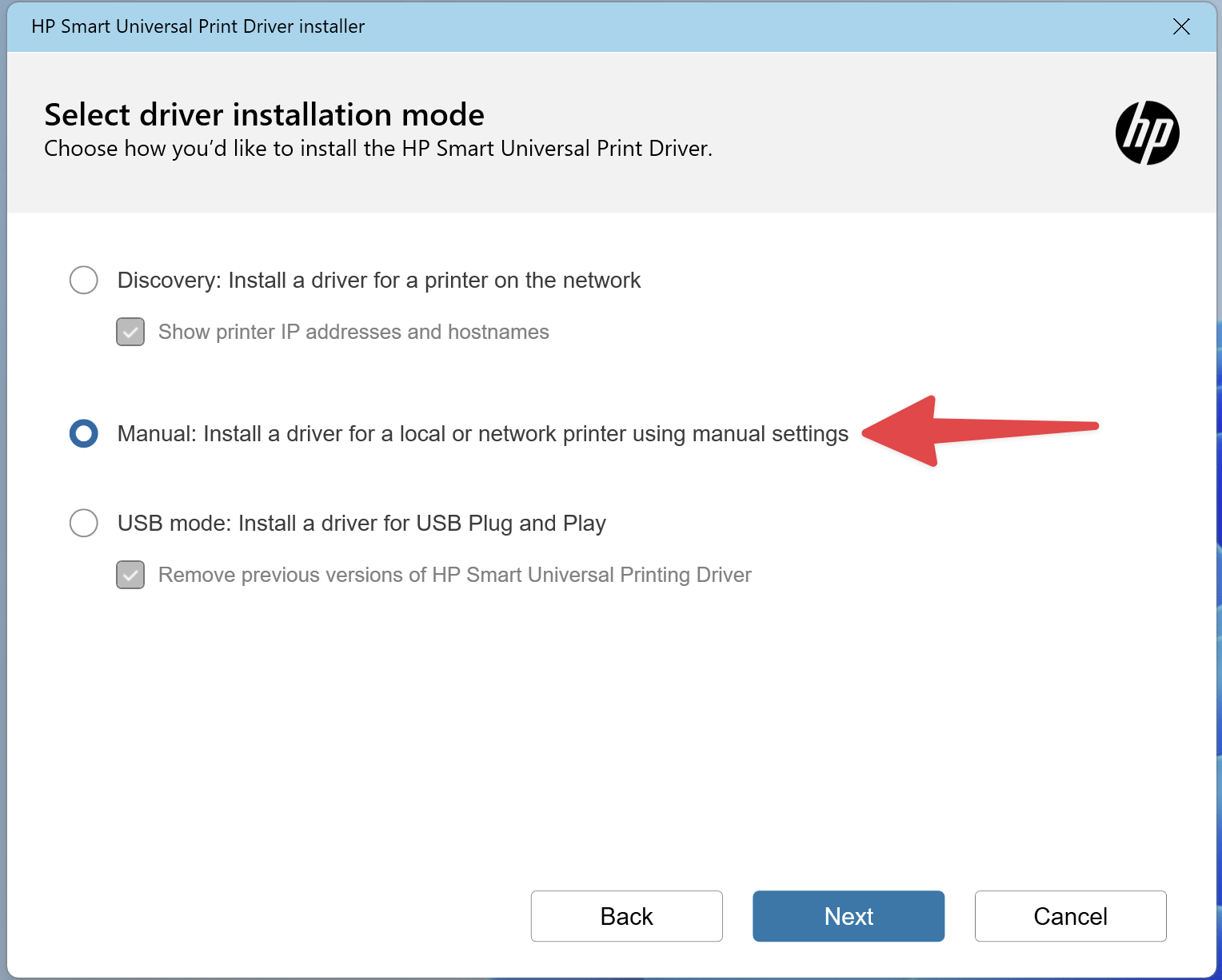
Scroll the license agreement window to the bottom and accept the terms. In Select driver installation mode pick Manual and hit Next.
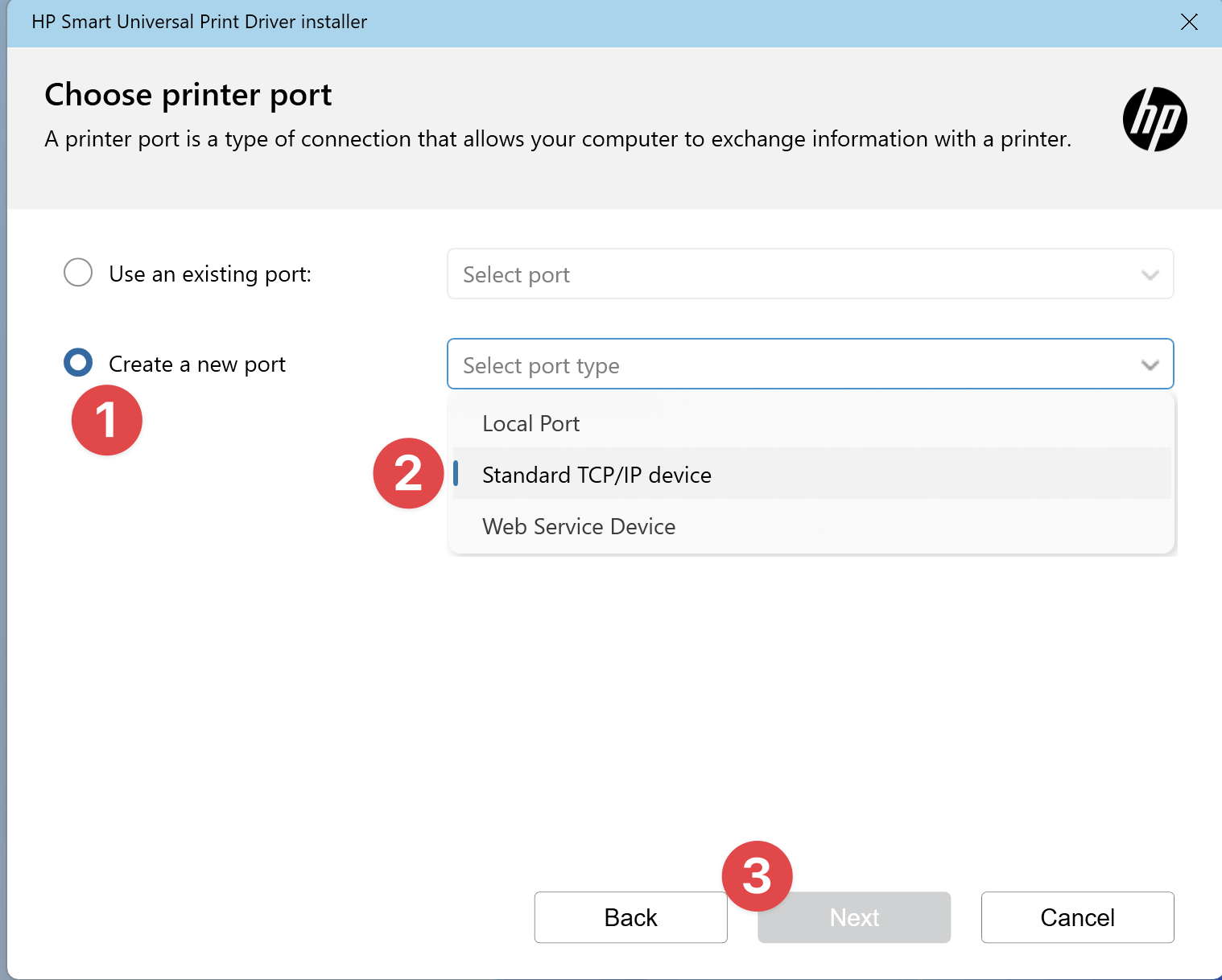
Pick Create a new port of type Standard TCP/IP device and hit Next.
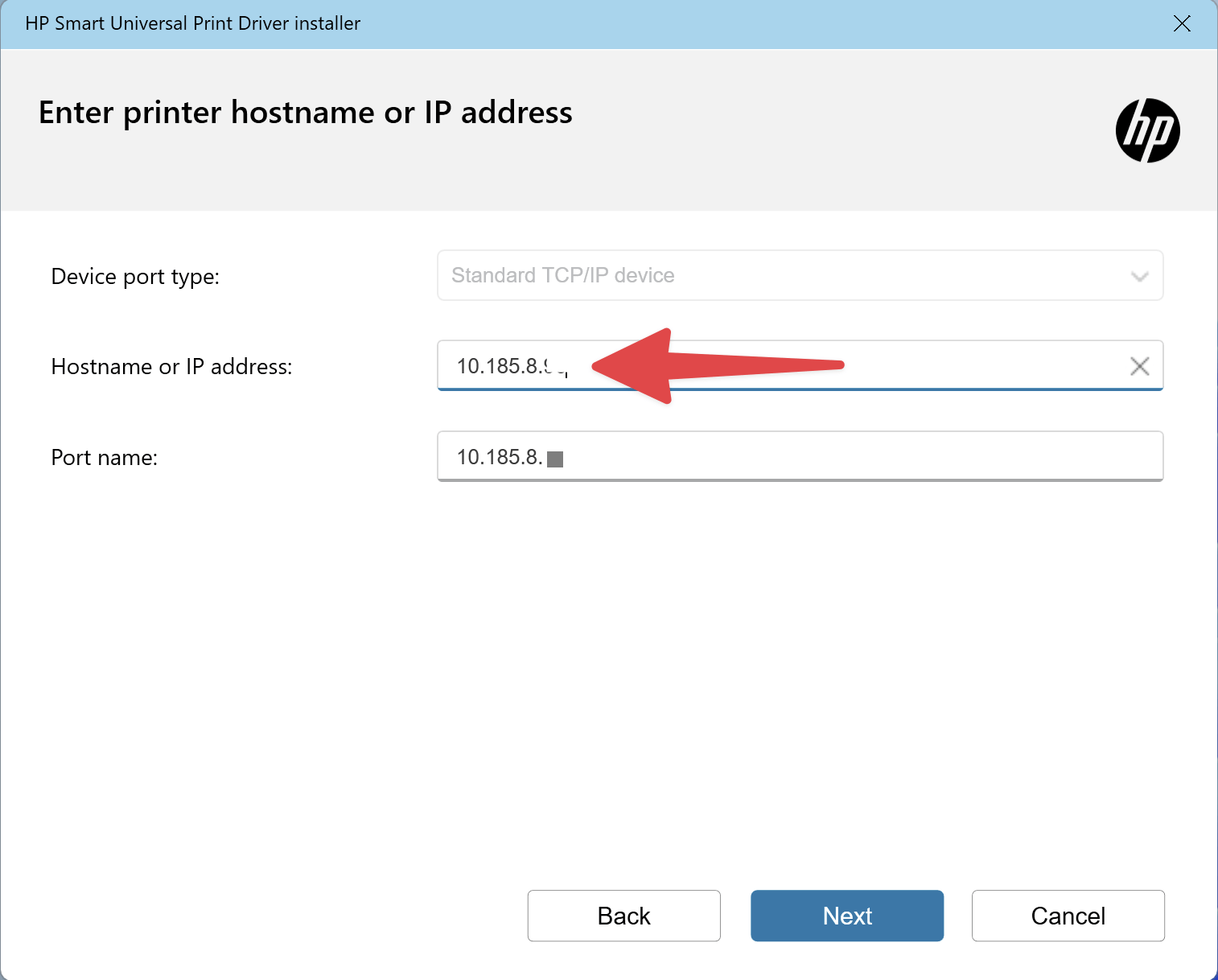
In the Hostname or IP address field, enter the IP address of the printer you wish to add from the list above. You should accept the default value for the Port name field.
On the next screen you’ll be able to give the printer a name that will help you find it in the future.
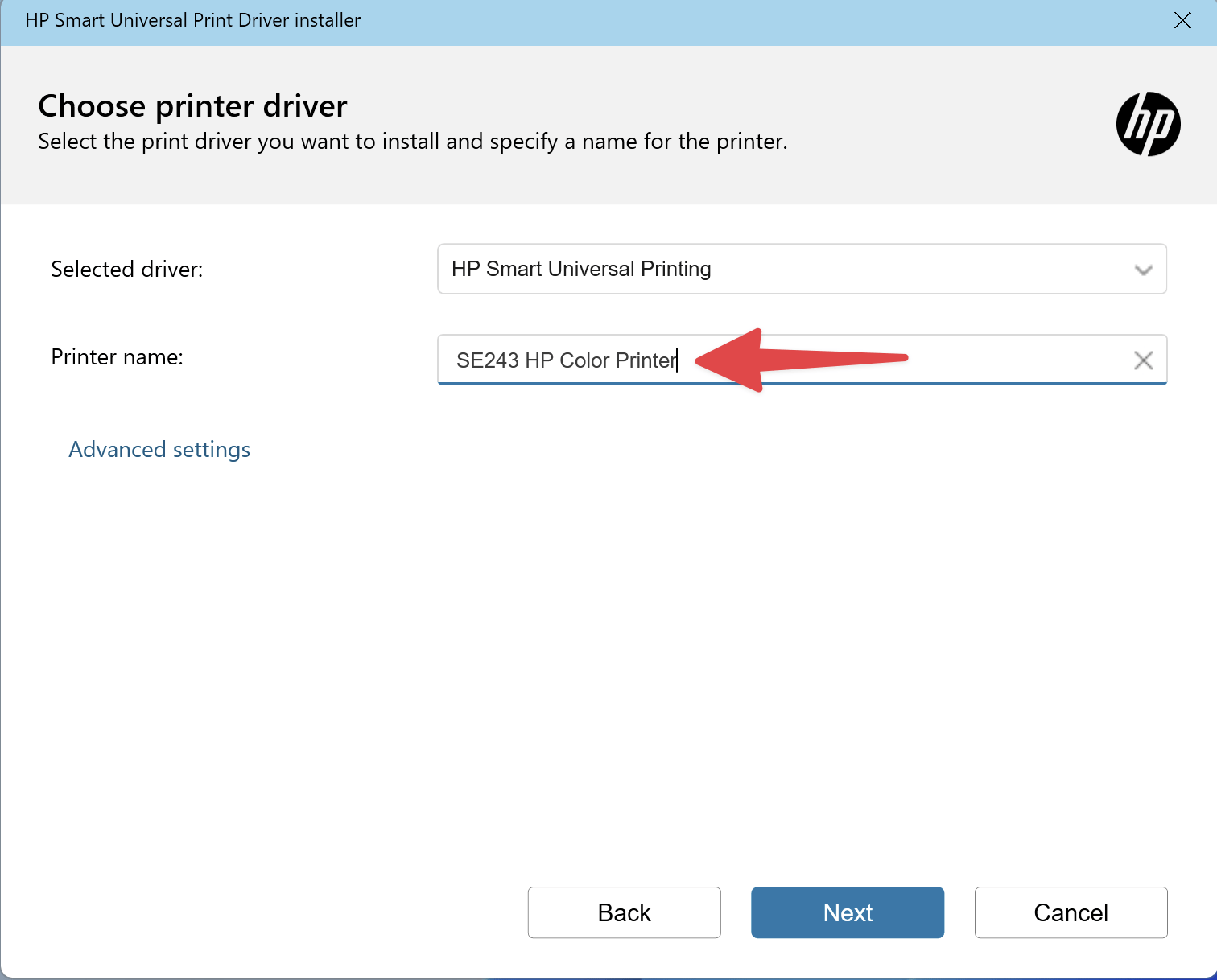
Hit next and the process is complete. Re-run this process if you need to add more printers.